
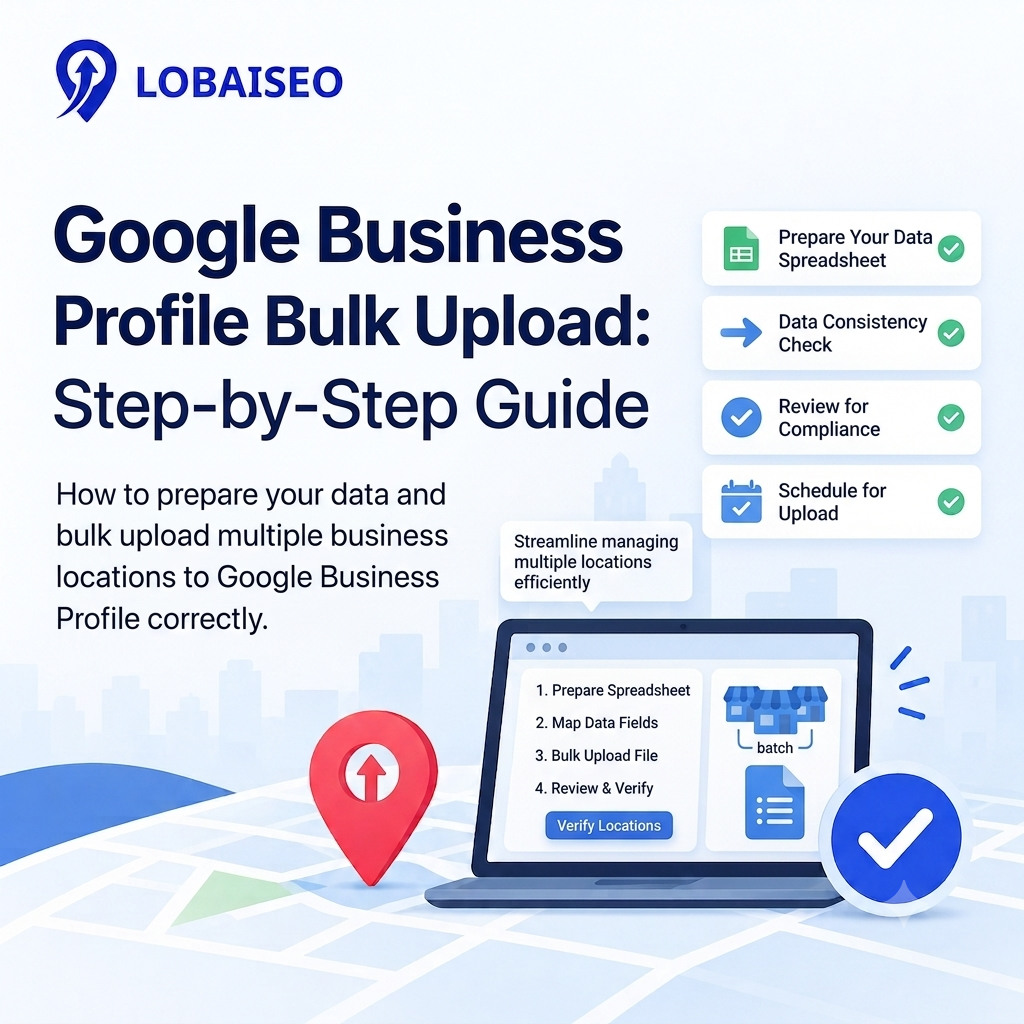
Handling several sites individually might take a lot of time. Google Business Profile bulk upload allows companies to add or change many locations from a single spreadsheet. This GBP bulk upload tutorial describes the procedure, typical issues, and verification stages in simple words.
For businesses with dealer networks, hotels, BnBs, offices, or many branches, Lobaiseo also works with manage multiple Google Business Profiles requirements and related GBP tasks.
How Should You Prepare Your Location Data Spreadsheet?
A clean spreadsheet is the first step in a successful bulk location upload Google process. Google requires a unique business code for every location, along with important details such as business name, primary category, address, and either a primary phone number or website. Using Google’s own template reduces formatting mistakes.
Check every row before uploading. Make sure addresses, phone numbers, categories, and store codes belong to the correct location. Do not change existing store codes when updating profiles, as this can create duplicates.
Lobaiseo’s work with businesses having multiple locations also shows why keeping location data organised matters. A related Lobaiseo GBP Short can be linked here for readers who prefer a quick visual explanation.
How Do You Use Google’s Bulk Upload Feature Correctly?
Start by signing in to Google Business Profile Manager and opening the option to import profiles. Google allows spreadsheet files such as XLS, XLSX, ODS, and CSV. After uploading, review the preview carefully before applying the changes. Google shows warnings, affected locations, and possible errors during this stage.
This is an important part of any GBP bulk upload guide because uploading the file does not mean every location is automatically published and verified. Fix any highlighted problems first.
For companies managing branches, dealers, hotels, villas, or distribution locations, bulk GBP management can save considerable manual work when the source data is accurate. Lobaiseo also works around multi-location GBP requirements, while its Shorts provide quick explanations of practical Google Business Profile tasks.
What Are the Common Bulk Upload Errors and How Can You Fix Them?
Bulk uploads can fail because of missing information, incorrect formatting, duplicate store codes, invalid phone numbers, or inconsistent location data. Google also checks whether the information follows Business Profile policies. For example, incorrect postal codes or missing required fields can stop locations from being processed correctly.
Another frequent problem comes when spreadsheet software modifies store codes, particularly those with leading zeros. Google recommended to verify these codes before submission.
If errors appear, download the location details, read the specific error messages, correct the spreadsheet, and upload it again. Businesses handling bulk GBP management can also review Lobaiseo’s practical GBP content and link a relevant Lobaiseo Short here for a quick explanation of common profile problems.
How Do You Verify Multiple Locations After Bulk Upload?
Uploading locations and verifying them are separate parts of the process. Google says businesses with 10 or more locations can use bulk management and request bulk verification. After uploading, review and correct errors before submitting the bulk verification request. Google then checks the business information to confirm that the locations are genuine and managed by the business or an authorised representative.
There is no fixed time that applies to every verification request. Delays can happen because of data problems, account details, or additional checks. Google also notes that some service-area businesses have different eligibility requirements.
For businesses needing bulk verification of GBP locations, Lobaiseo can be relevant where wider GBP verification help is required. A Lobaiseo Short about GBP verification can also be linked here as a quick visual reference.
FAQs
Sign in to Business Profile Manager, download Google’s spreadsheet template, add your locations and required information, then import the completed file. Review the preview, fix errors, and apply the changes before requesting bulk verification.
What format does Google require for bulk location upload?
Google accepts XLS, XLSX, ODS, and CSV spreadsheet files. Each location needs a unique business code, while other required fields depend on the business information being added or updated.
Why did my bulk GBP upload fail?
Some common issues are: missing needed information, wrong phone or postal-code formats, duplicate store codes, invalid fields, inconsistent location data. Google offers problem details so you may fix the spreadsheet and upload again.
How long does bulk verification take for multiple locations?
Google has no standard processing time for all bulk verification requests. The time will depend on the account, the information given, mistakes and further tests needed for verification.